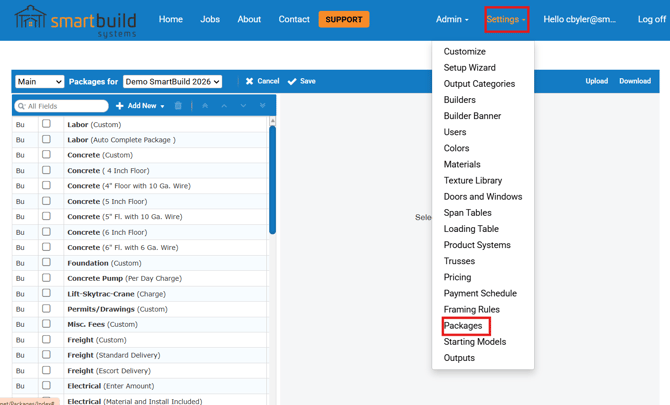
1. Click Settings_Packages
If you have recently setup a builder, the packages that you had setup for the main company were copied over to the builder at that time of setup.
Be aware that as you change packages in your main company you will need to follow the next steps each time you change something to make sure they are the same for your builders.
!! Some companies give their builders access to edit packages, so make sure how your builder is set with permissions before you blindly update, as it can overwrite their custom packages !!
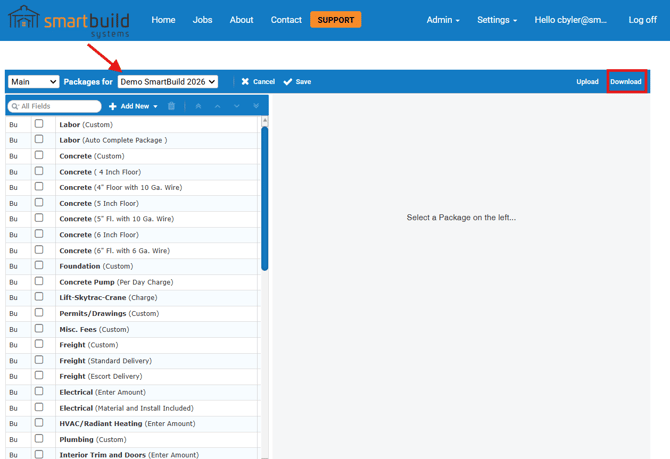
2. In packages (under your account name) click the download button. This will download an excel file with all of your current packages.
3. ⚠️ Before you upload and overwrite packages for a builder, check their permissions. Some distributors allow their builders to control their own packages, while other builders underneath the distributor may have this permission turned off. You can find this setting under Settings_Builders, if the Can Edit Packages is checked, it means they control their own packages and you need to verify they want the changes you are about to make. ⚠️
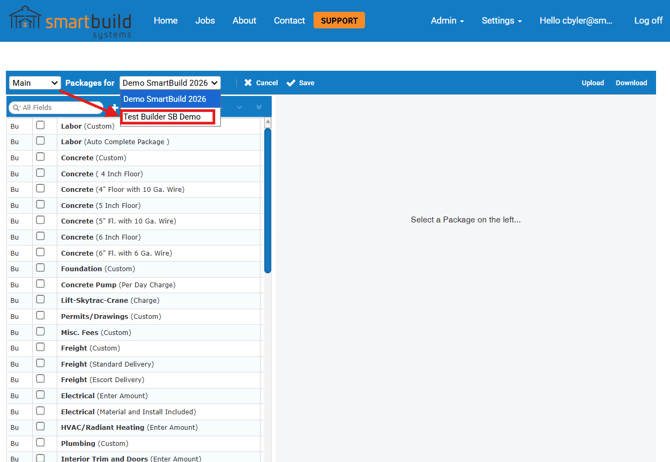
4. Switch the user to the builder you want to update.
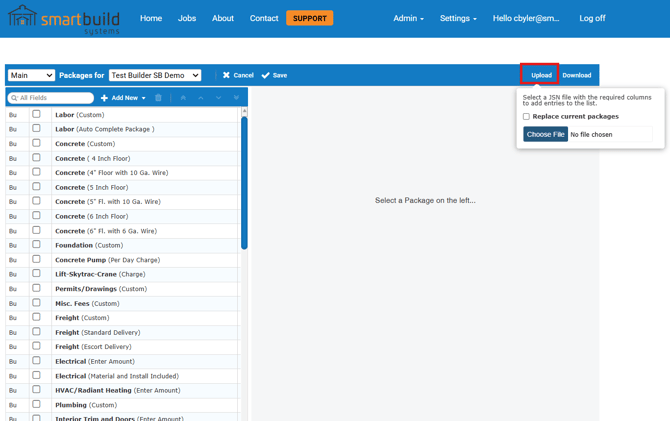
5. Click the Upload button and select your file.
You will see an option to check “Replace Current Packages.”
-
If selected, this will remove all existing packages in this window and replace them with the contents of your uploaded file.
-
If left unchecked, the uploaded packages will simply be added to the existing list.
If you only need to add a few new packages, make sure your JSON file contains only those specific packages and leave this option unchecked.
In most cases, you’ll download the full package list and upload it into another builder’s packages, so this option is typically not used.